
# Theme Requirements
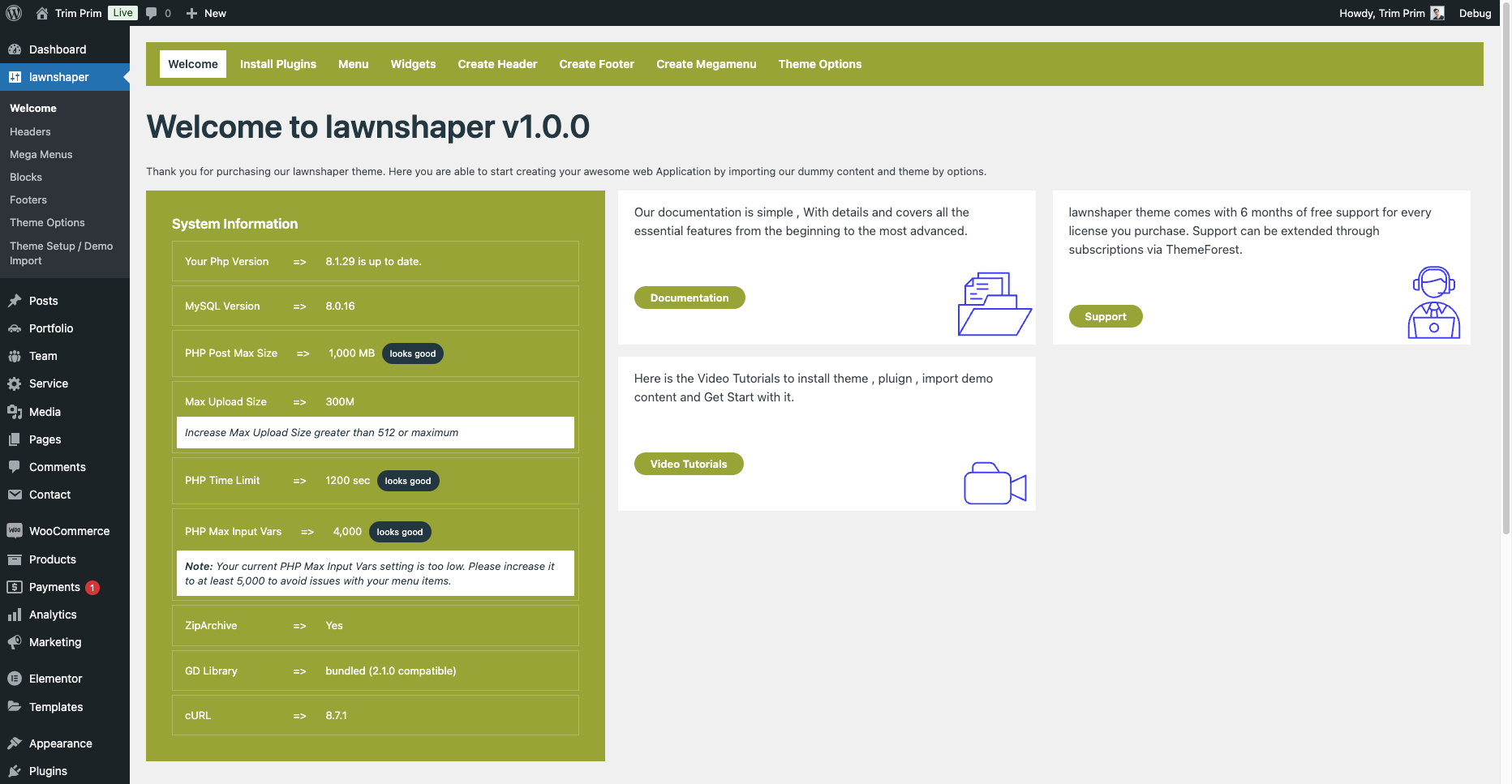
To use Lawnshaper, please make sure you are running WordPress 6 or higher, PHP 7.4 or higher, and MySQL 5.6 or higher. We have tested it with Mac, Windows. Besides, please check the recommended server configuration for proper theme functioning: Our Recommended Version above wordpress 5.5 and php 7.4.
Minimum server configuration
- PHP version - 7.4 and higher (Tested Up to 8.2)
- MySQL version - 5.6 or higher
- PHP Post Max Size => 256M or 512M
- Max Upload Size => 256M or 512M
- PHP Time Limit – 1000
- max_input_time – 300
- PHP Max Input Vars – 4000 and above
Or Check your server Configuration on your Wordpress Dashboard -==> Go to Lawnshaper -==> About Lawnshaper
# Files Included in Lawnshaper Package
Files Included in Packages
- Lawnshaper.zip , Lawnshaper-child.zip This is the Theme You want To use to build site.
- Documentation : This Folder Contains Docmentation Link
- Demo-content : This Folder contains demo data files For Impot Dummy Content
- Licensing : This folder contains coygen theme License.
- Theme-core-plugin : This folder contains coygen Core pluign.
- Lawnshaper Icons : This folder contains Lawnshaper icons We used in our theme.
# Theme , Pluign Installation and Import Demo Content
There are 2 ways to upload the theme. Please fallow the given steps.
Via Dashboard
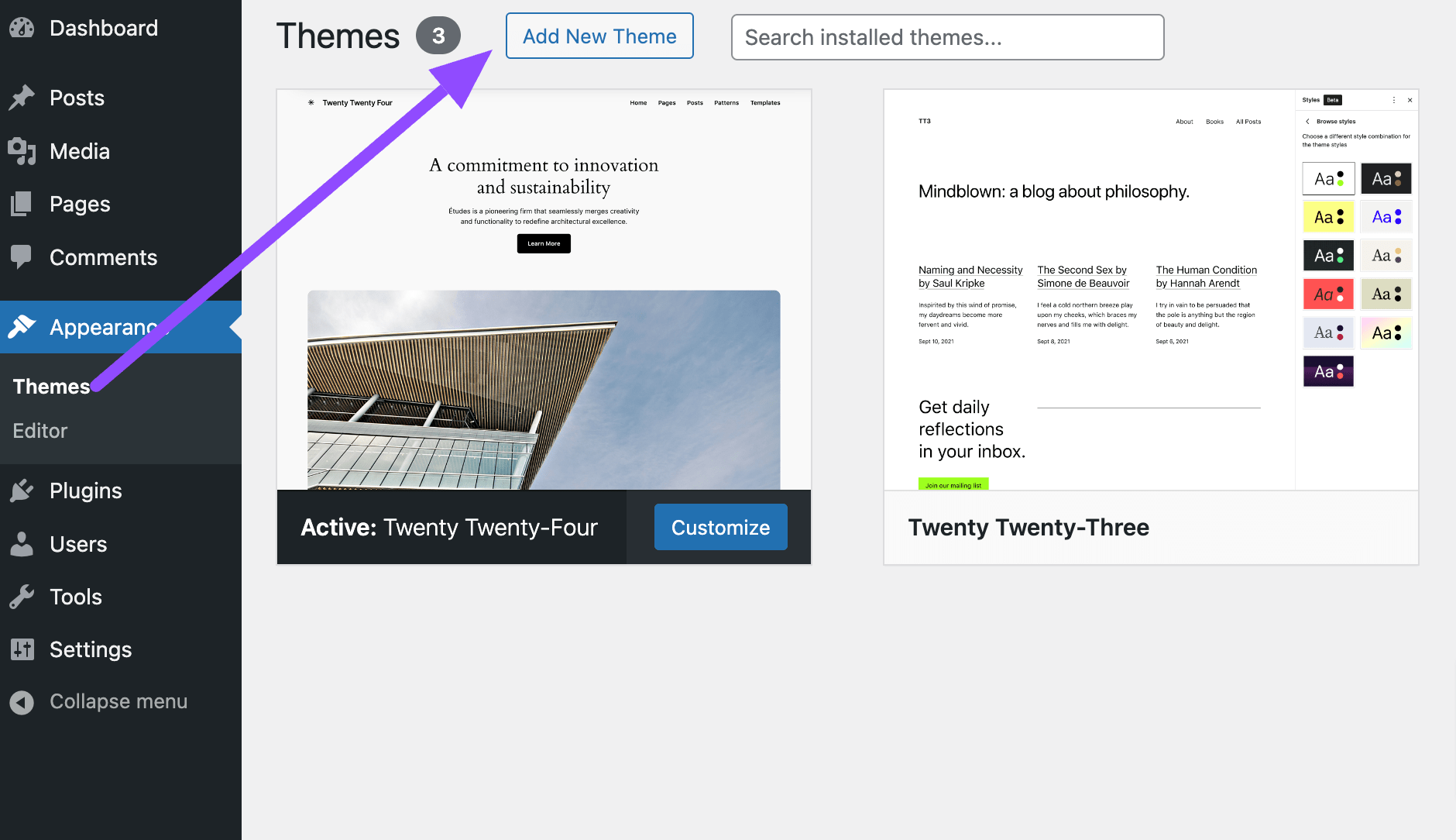
- Navigate to Appearance → Themes in your WordPress admin dashboard.
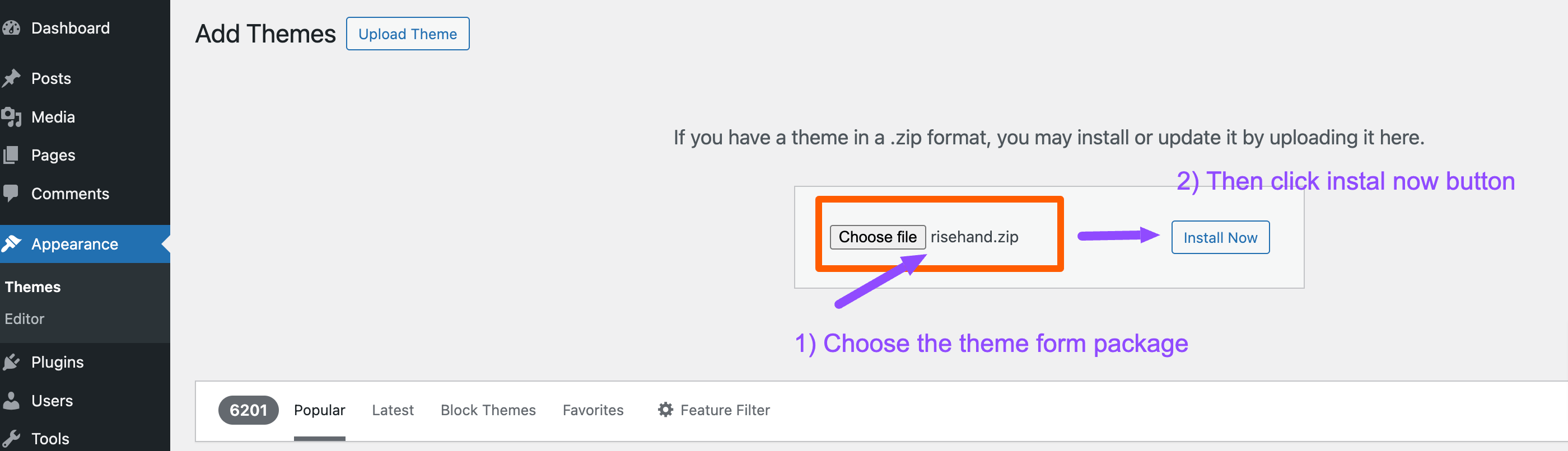
- Click the Add New button at the top of the page then go for the Theme Upload option.
- For the file upload, pick Theme Files / Lawnshaper.zip in the theme package downloaded from ThemeForest and click Install Now.
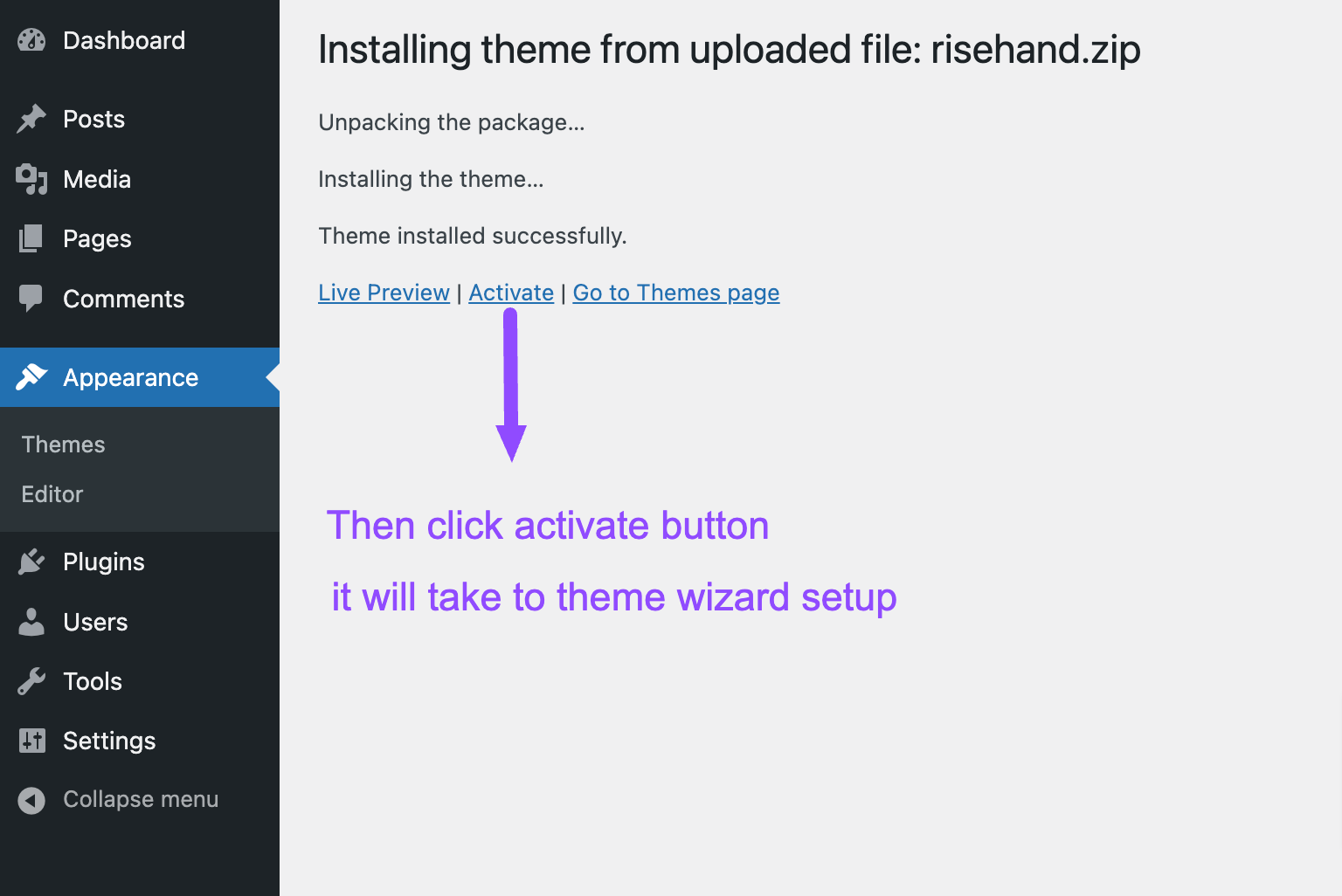
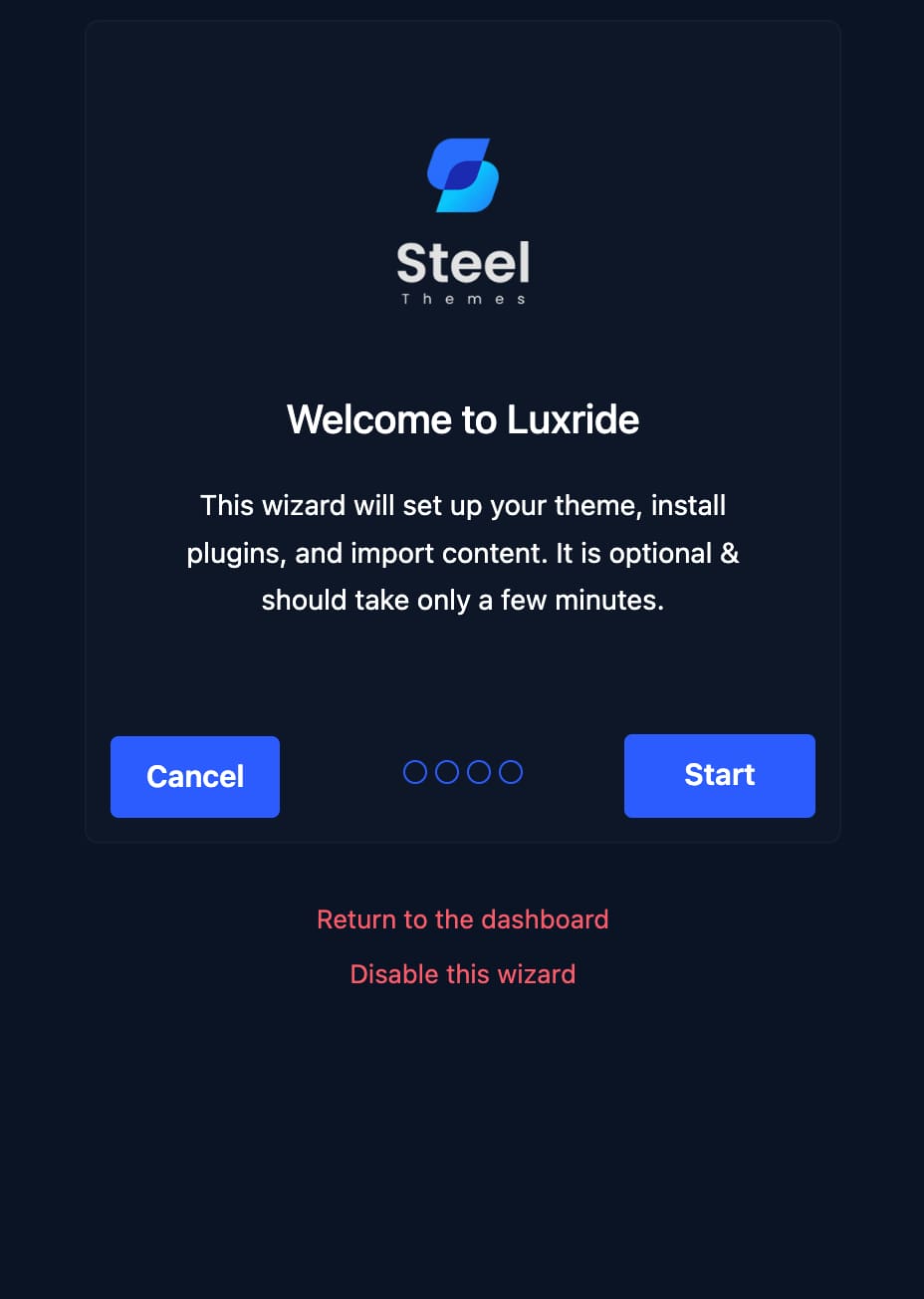
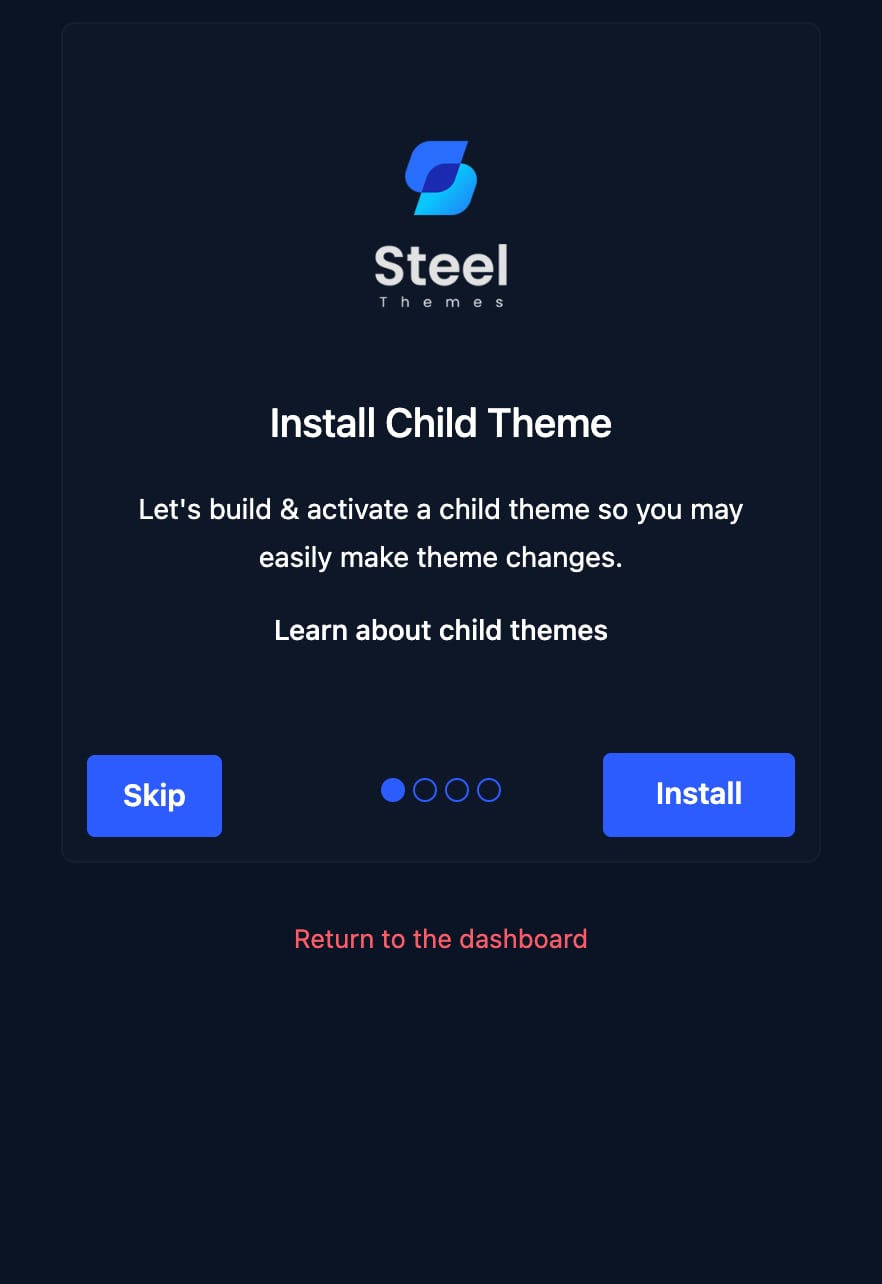
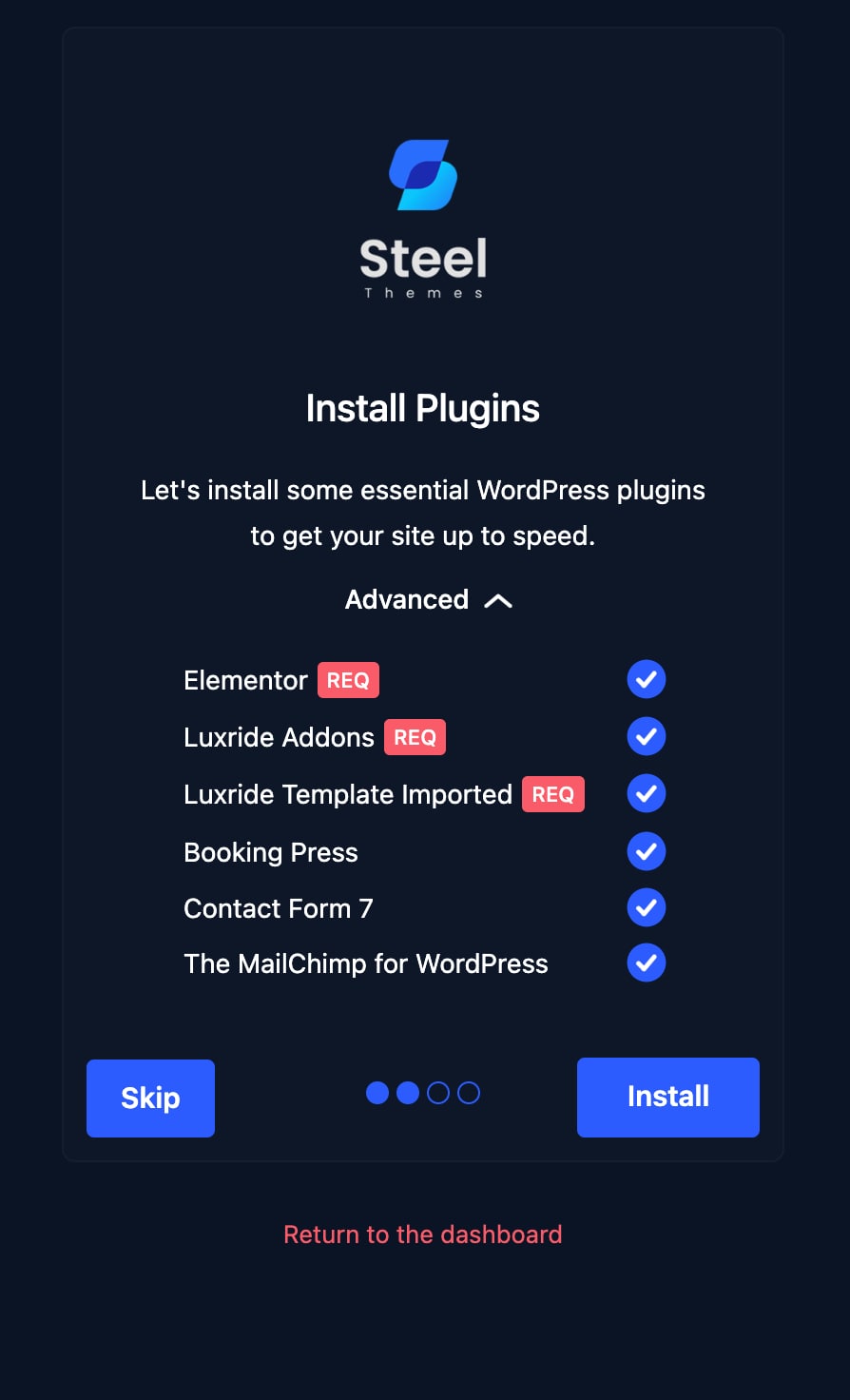
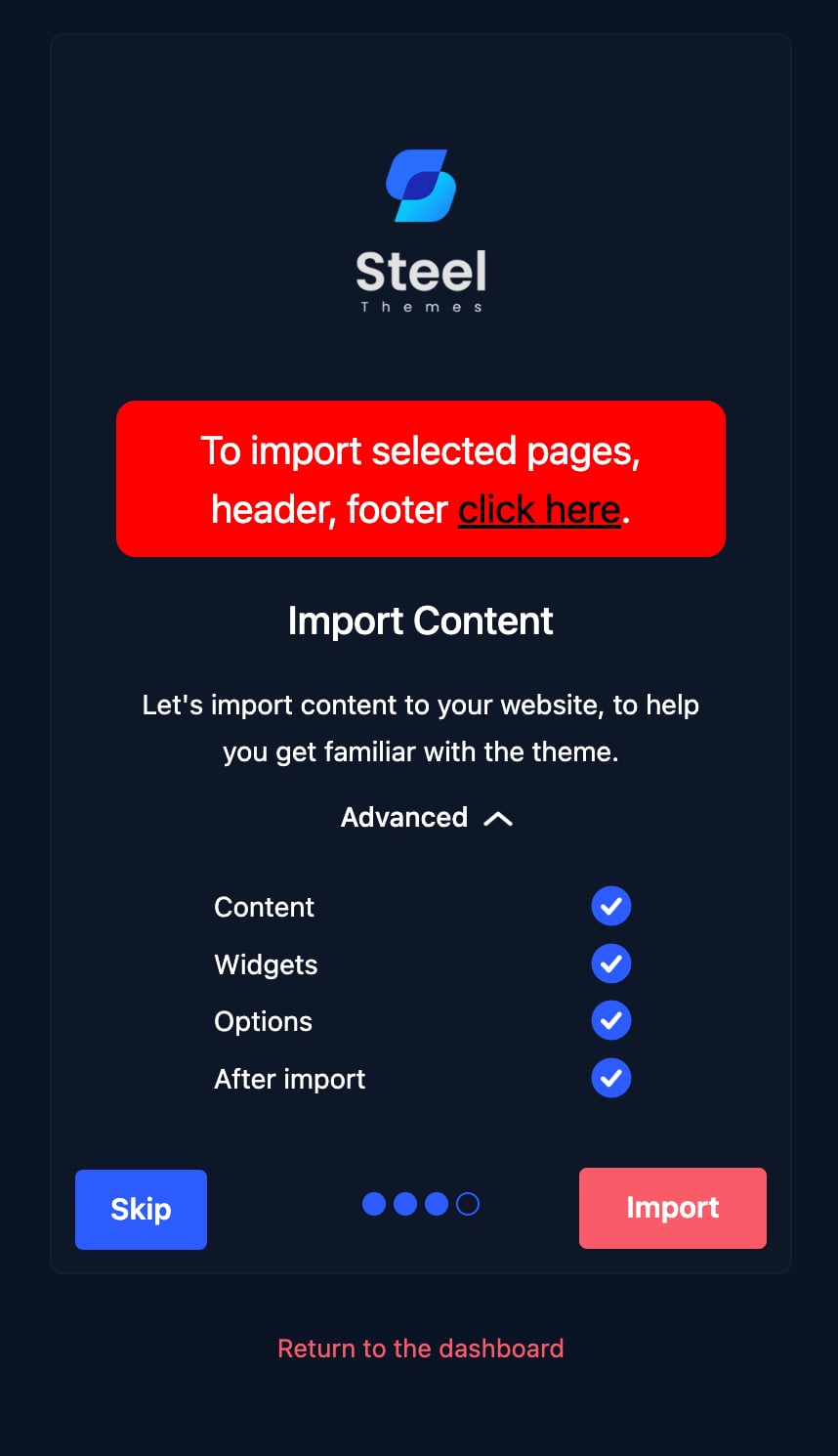
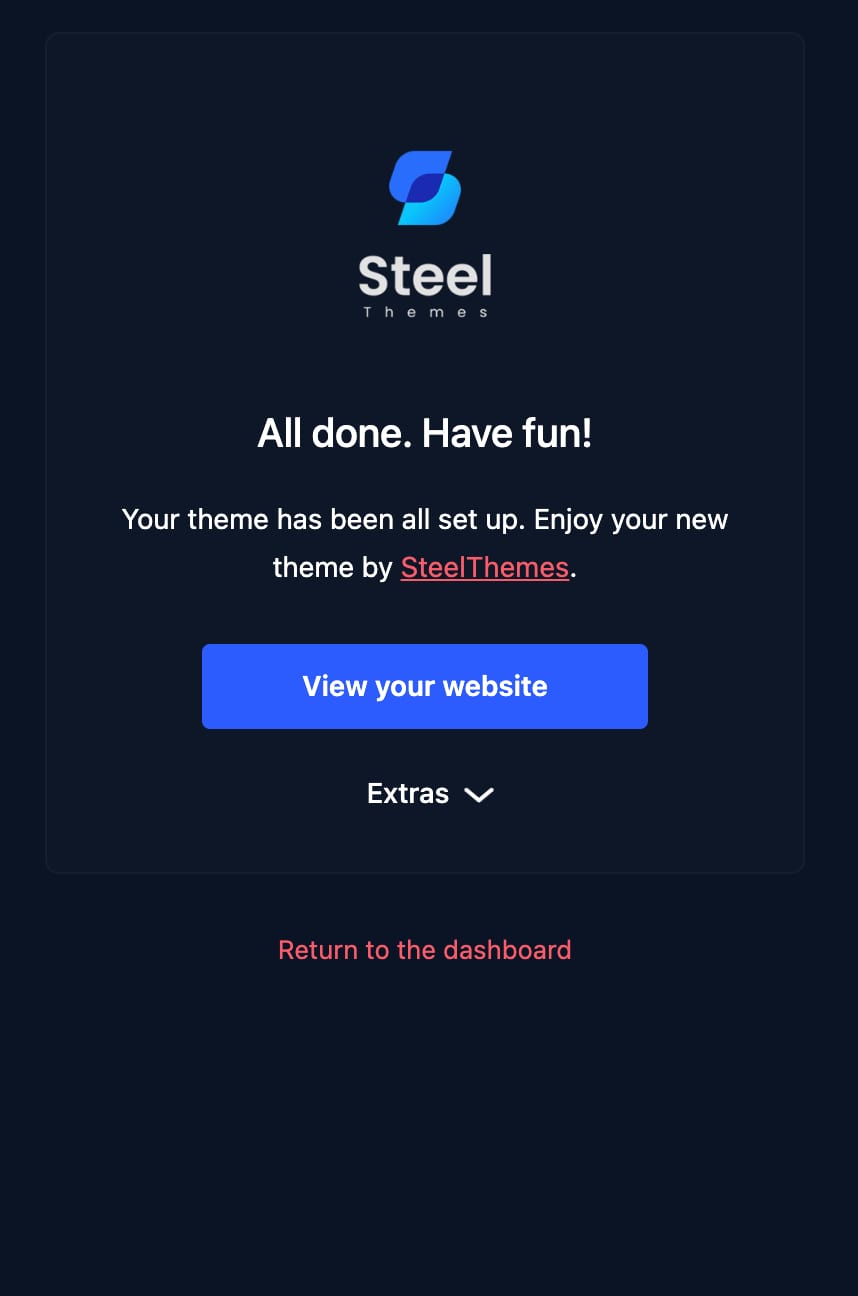
- Click Activate and it will redirect you to the theme setup wizard. Then execute the steps to install the child theme, install the plugin and import the demo content after finish import click ===> view your Website.
After Activate the theme, setup wizard won't pop up, then go to Lawnshaper ==> Theme Setup / Import Demo, it will take you to theme setup wizard.
Via FTP (Recommended)
- Extract the theme package downloaded from ThemeForest Lawnshaper-main-package.zip open the folder.
- Open any FTP aplication like Filezilla navigate to the directory of the Theme.
- For the file upload, pick Theme Files / Lawnshaper.zip in the theme package downloaded from ThemeForest.
- Navigate to Appearance → Themes in your WordPress admin dashboard.
- Click Activate once the upload has finished and you're ready for the next step: Installing the Plugins.
# After Import Enable the responsive breakpoints in elementor ( Must )
Follow below video to enable responsive breakpoints in elementor
# Troubleshoot Options for Elementor
Regenerating CSS: This can easily be fixed by going to WP admin ==> Elementor ==> Tools ==> Regenerate CSS. Then, you can clear the cache (WP cache and browser cache) and refresh the page. Clearing Site Cache: Check if you have any caching plugins on your site or any server level caching enabled. Clear those caches.
- On Your Dashboard go to Elementor ==> Tools ==> Regenerate CSS
- Troubleshoot if elementor editor is not loading
# Too To Set up the Homepage & BlogTeam
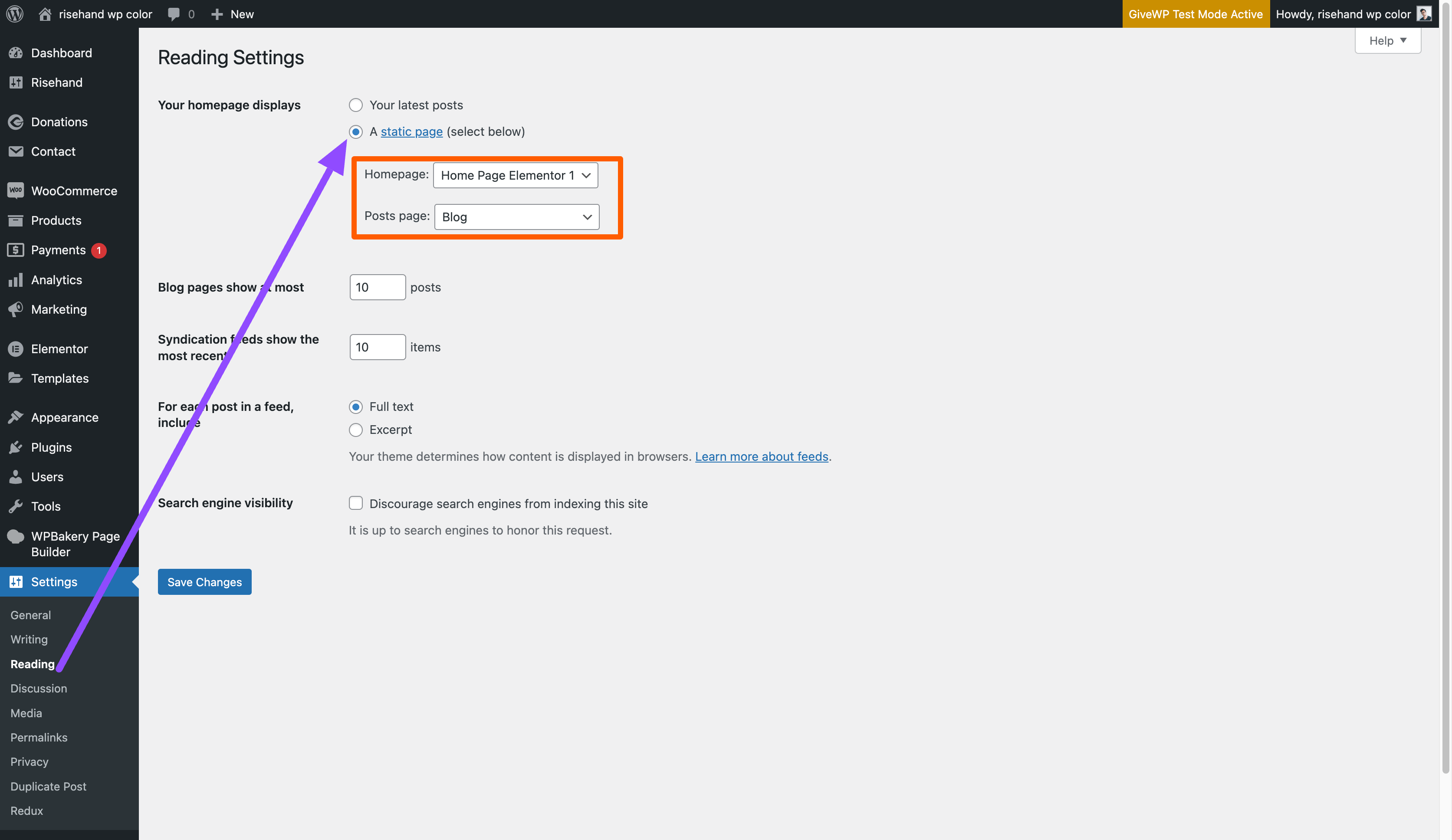
To set a custom page as homepage:
- Go to Settings - Reading.
- Select a Static Page option.
- Select page for front page and blog.
# To enable maintenance mode (staging site option) , Site Cookies , Preloader for site and Backtotop Team
To Enable maintance mode follow this video
To Enable Cookies follow this video
# To Know about tempalte usage for Page , Post , Ourfleet , Team and Service
- There four types of template for post , page , service , team and ourfleet.
- Default Tempalte ( That Comes With Sidebars )
- Lawnshaper Boxed ( That Comes With Page title Breatcrumb and 60px padding on body area and background light color)
- Lawnshaper Fullwidth ( That Comes With Page title Breatcrumb)
- Lawnshaper Home Fullwidth ( No page title and breadcrumb empty page. )
# To change Page title and breadcrumb settings
- On Your Dashboard go to Lawnshaper ==> Theme Option ==> Lawnshaper Page Header Settings
# Widget -> To add or change the content on sidebars
- On your Wordpress Dashboard ==> go to Apperance ==> Widgets
- There you can find Blog Sidebar , Page Sidebar , Portfolio Sidebar , Team Sidebar and Service Sidebar. Change the content
- To display sidebars on Blog , Page , Fleet , Service and team. You need to change the layouts.Go to Lawnshaper -> Theme option -> Layout settings -> Change the layouts.